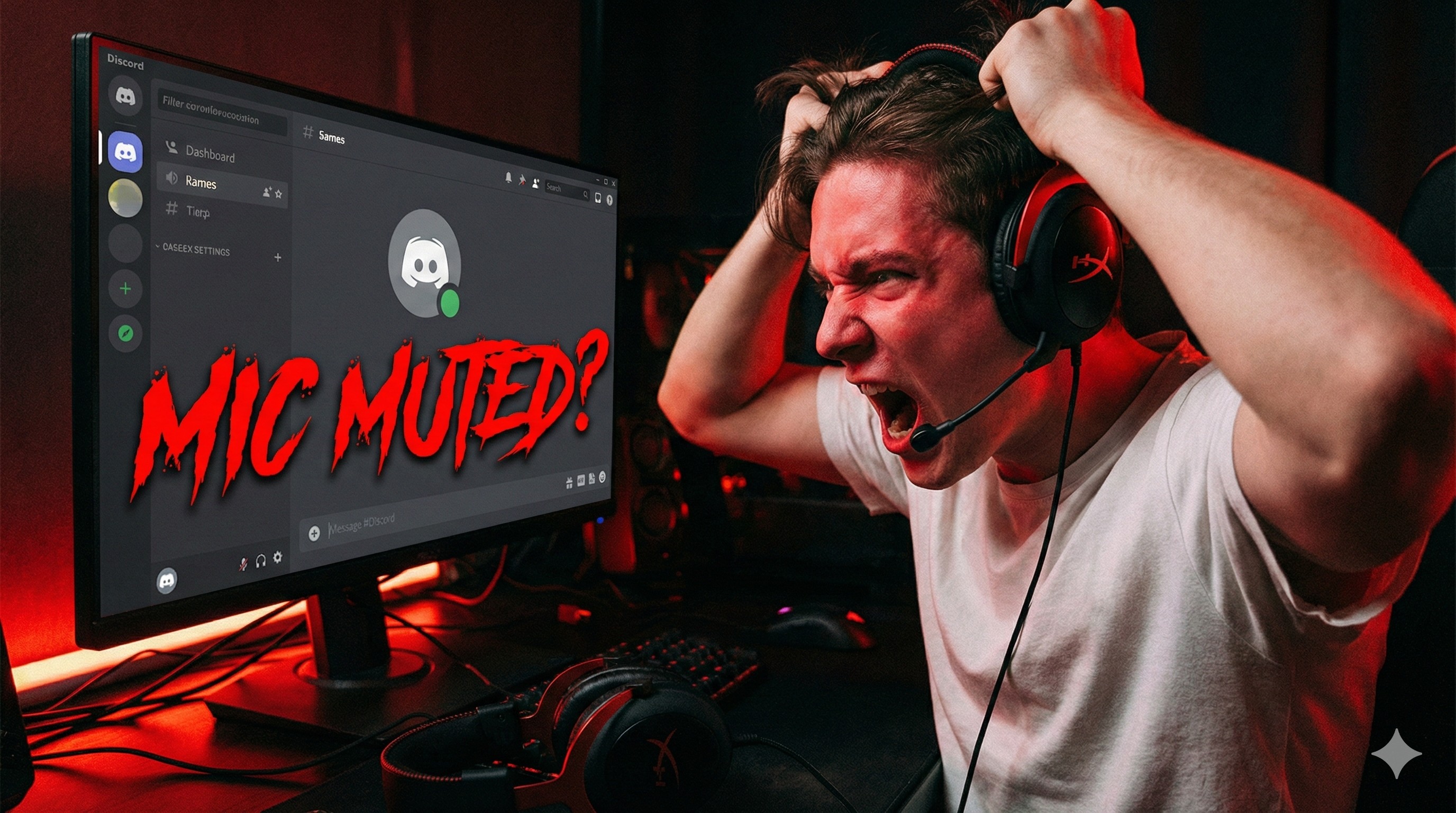
"You are in a intense 2v2 situation. You spot the enemy flanking. You scream into your mic: 'BEHIND YOU! BEHIND YOU!'
Your teammate doesn't react. He dies. You die.
Then you hear him say: 'Bro, why didn't you give info?'
That awkward moment when you realize you've been talking to yourself for the last 20 minutes. Welcome to the Discord Mic Glitch club."
Discord is great, but sometimes it acts like a moody teenager and decides to ignore your microphone. Before you smash your expensive headset, let's try these 5 simple fixes. 99% of the time, it's Fix #2.
"Did you accidentally press the physical mute button on your headset cable? Don't lie. Check it now. We've all done it."
Fix 1: Select the Correct 'Input Device'
Sometimes Discord gets confused and tries to use your webcam mic or a virtual cable instead of your actual headset mic.
- Open Discord **User Settings** (The gear icon bottom left).
- Go to **Voice & Video**.
- Under **Input Device**, click the dropdown.
- Do NOT select "Default". Select the specific name of your microphone (e.g., "Microphone (HyperX Cloud II)").
Fix 2: Turn Off 'Automatic Input Sensitivity'
This is the culprit most of the time. Discord tries to be smart and only transmit voice when it thinks you are speaking loud enough. If you speak softly, it cuts you off.
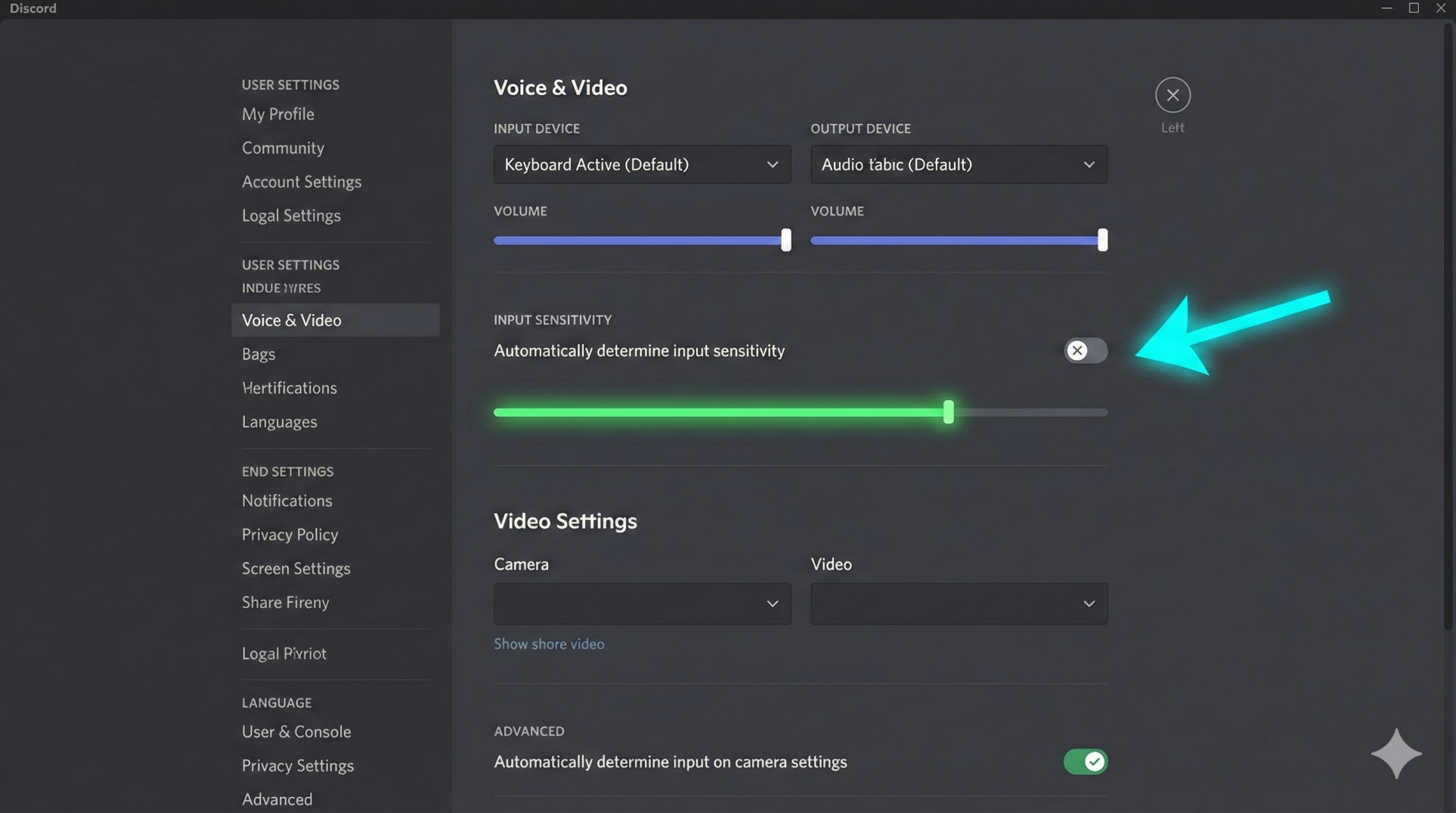
- Go to **Settings > Voice & Video**.
- Scroll down to **Input Sensitivity**.
- Turn OFF the toggle that says "Automatically determine input sensitivity."
- Now, speak into your mic and drag the slider to the left until the bar turns green when you talk.
Fix 3: The Windows Privacy Block
Sometimes Windows gets overly protective and blocks apps from using your microphone for "privacy" reasons.
Go to Windows Search -> type **"Microphone Privacy Settings"**. Make sure "Allow desktop apps to access your microphone" is turned **ON**. If Discord is listed there, make sure it has permission.
Fix 4: The Nuclear Option (Reset Voice Settings)
If nothing works, let's nuke the settings back to default. This often clears up weird software glitches.
- Go to Discord **Settings > Voice & Video**.
- Scroll to the absolute bottom.
- Click the big red button that says **"Reset Voice Settings"**. Discord will restart.
Conclusion: You Are Now Heard!
Your teammates can finally hear your brilliant strategies (or your rage). It’s usually just a small setting toggle that causes big headaches. Now go win that match!
Mic still broken? It might be a hardware issue. Contact us for hardware recommendations.