
"Imagine this: It's the final round. 1v1 situation. Your teammates are screaming in your ears. You spot the enemy, aim at his head, and click fire. BOOM! Headshot... right?
Wrong. Suddenly, your character teleports back three steps, you are staring at a wall, and the screen says 'DEFEAT'.
Welcome to the world of High Ping. It hurts more than a breakup, doesn't it?"
We've all been there. You have a beast PC, a flagship phone, but your internet decided to act like a tortoise running a marathon. Today, we aren't just going to talk about "Restarting your router." No, we are going deep. We are fixing this properly.
What exactly is PING? (Explained via Pizza)
Think of Ping as a Pizza Delivery Guy.
- You (The PC): Order the pizza (Send data).
- The Server: Cooks the pizza (Processes data).
- Ping: The time it takes for the guy to deliver it back to you.
If the delivery guy (your internet) stops to chat with neighbors, gets stuck in traffic, or forgets the address—that's High Ping. And in gaming, we want that pizza delivered in milliseconds, not minutes.
"A gamer with 10 FPS can still win with skill, but a gamer with 999 Ping can only pray to God."
Step 1: The 'Ethernet' Truth (Wireless is the Enemy)
Look, I know WiFi is convenient. I know you don't want a 10-meter cable running through your hallway like a snake. But here is the hard truth:
WiFi is like shouting to your friend across a crowded room. Sometimes they hear you, sometimes the signal gets lost because someone turned on a microwave.
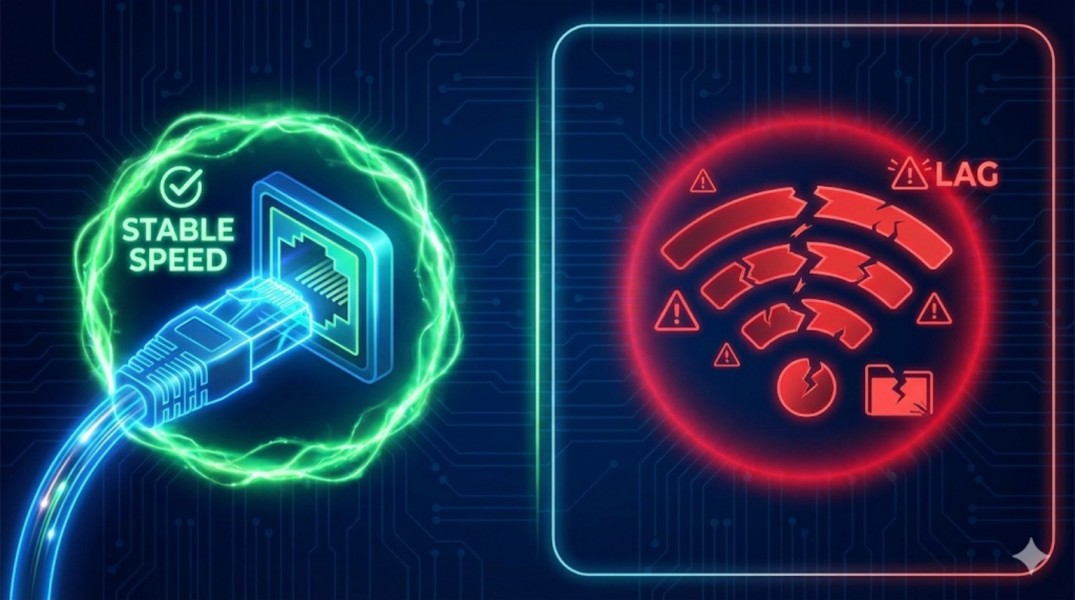
The Fix:
Buy a CAT-6 Ethernet Cable. Plug it directly from your router to your PC/Console. This alone can drop your ping from 80ms to 20ms instantly. It’s cheap, it’s ugly, but it wins games.
Step 2: Close the Vampires (Background Apps)
Your computer is a multitasker, but sometimes it's an idiot. While you are trying to rank up, Windows might decide, "Hey, let's download a 4GB update right now!" or Chrome might be eating your RAM like it's a buffet.
Before you launch the game, open Task Manager (Ctrl + Shift + Esc) and ruthlessly kill these apps:
- Steam/Epic Games Downloads (Pause them!)
- Google Chrome (Especially if you have 50 tabs open)
- Spotify (Stream locally if you can)
- Windows Updates (Pause for 7 days)
Step 3: Change DNS (The Secret Map)
Your ISP's default DNS server is usually trash. It takes the long route to connect to game servers. Changing it is like finding a shortcut on a map.
Try switching to Cloudflare DNS (It’s built for speed):
- Go to Network Settings > Change Adapter Options.
- Right-click Ethernet/WiFi > Properties.
- Select IPv4 and click Properties.
- Select "Use the following DNS server addresses" and type:
Preferred: 1.1.1.1
Alternate: 1.0.0.1
Step 4: The "Flush" Trick
Sometimes your network gets clogged with old, useless data cache. Flushing it out is surprisingly satisfying. It's like brushing your teeth but for your internet.
Open Command Prompt (CMD) as Administrator and type these commands one by one:
ipconfig /flushdns
ipconfig /release
ipconfig /renew
netsh winsock reset
Restart your PC. You will feel the difference.
Conclusion: Don't Blame the Game
Fixing ping is 90% about optimizing your own setup and 10% blaming the ISP. Follow these steps, get that Ethernet cable, and stop teleporting around the map like a glitchy ghost.
Got more questions? Email us here. Happy Gaming!