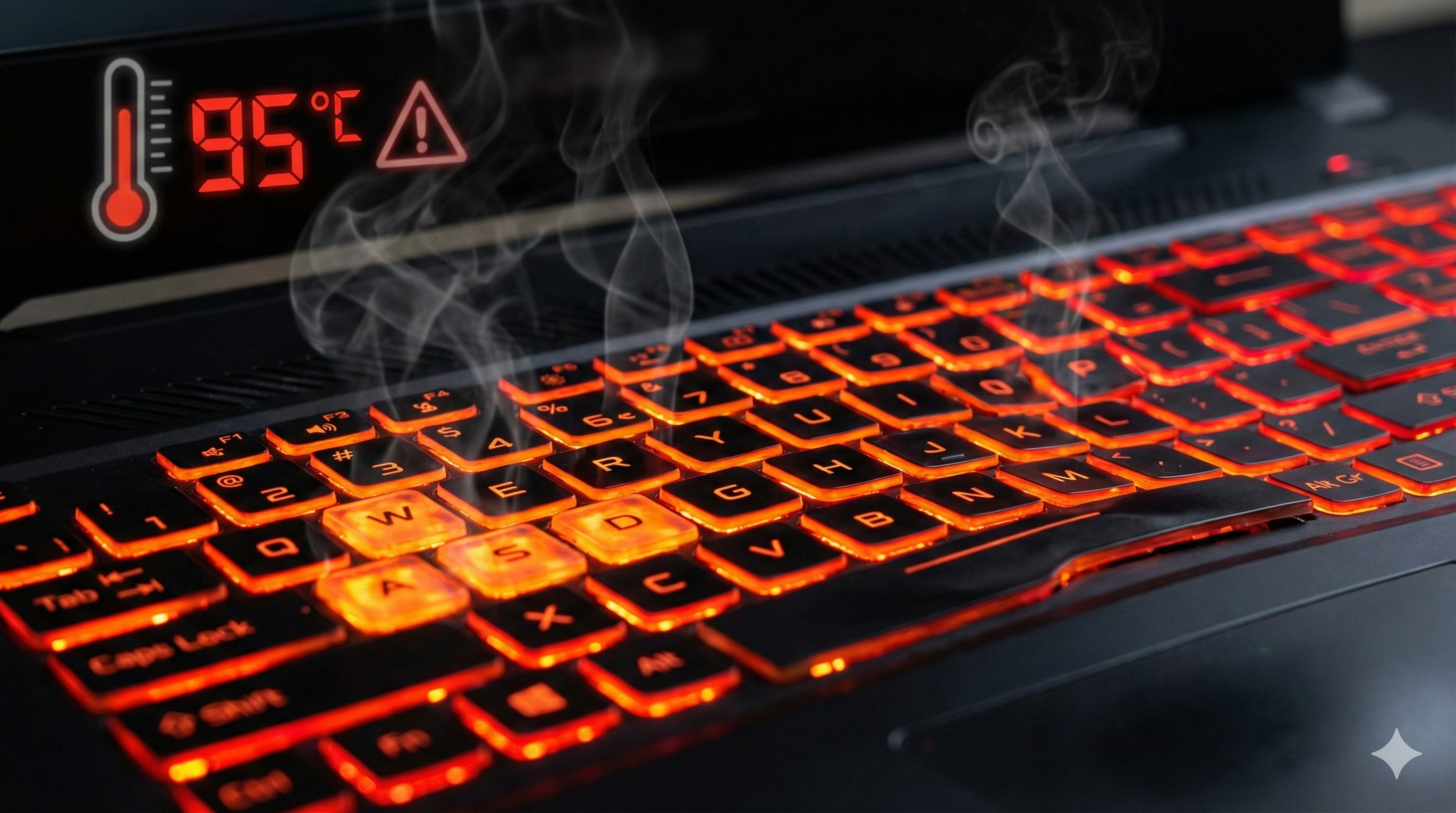
"You are playing GTA 5, enjoying the view. Suddenly, your fans sound like a jet engine taking off.
You touch the keyboard, and it burns your fingers.
The game starts lagging. Why? Because your laptop has decided it's no longer a computer; it identifies as a frying pan."
Overheating is the silent killer of gaming laptops. When your CPU gets too hot (90°C+), it intentionally slows down to save itself from melting. This is called Thermal Throttling. Let's fix it before you accidentally cook an egg on your WASD keys.
"Running your laptop at 95°C constantly can reduce its lifespan by 40%. Cool temps = Long life."
Step 1: The 'Bottle Cap' Hack (Free & Effective)
Most gaming laptops suck air from the bottom. If you place your laptop flat on a table (or worse, on a bed), you are suffocating it.
The Fix: Take two plastic bottle caps. Place them under the back rubber feet of your laptop.
This lifts the back of the laptop by 1 inch, allowing 50% more airflow. I tested this, and it dropped my temps by 4°C instantly. It sounds stupid, but it works.
Step 2: The 99% CPU Trick
By default, Windows pushes your CPU to run at 100% capacity even when it's not needed, generating insane heat (Turbo Boost). Let's calm it down.
- Go to Control Panel > Power Options.
- Click "Change plan settings" next to your active plan.
- Click "Change advanced power settings".
- Find Processor power management > Maximum processor state.
- Change it from 100% to 99%.
This disables Turbo Boost. You might lose 2-3 FPS, but your temperature will drop by **10°C to 15°C**. A worthy trade-off.

Step 3: Clean the Dust bunnies
If you haven't cleaned your laptop in 6 months, there is a civilization of dust living inside your fans. Dust blocks airflow, trapping heat inside.
Buy a can of Compressed Air and blow it into the vents (in short bursts). Do NOT use a vacuum cleaner; the static electricity can kill your motherboard.
Step 4: Undervolting (The Pro Move)
Manufacturers send more voltage to the CPU than necessary "just to be safe." Excess voltage = Excess Heat.
Use software like ThrottleStop to lower the voltage offset (Start with -50mV). It’s safe, and it tells your CPU to do the same work with less power. It’s like magic for temperature.
Conclusion: Stay Cool, Game Hard
You don't need an expensive cooling pad to keep your temps down. Just elevate the laptop, clean the dust, and disable that unnecessary Turbo Boost. Your fingers (and your frame rate) will thank you.
Still too hot? It might be time to change the thermal paste. Ask us how.