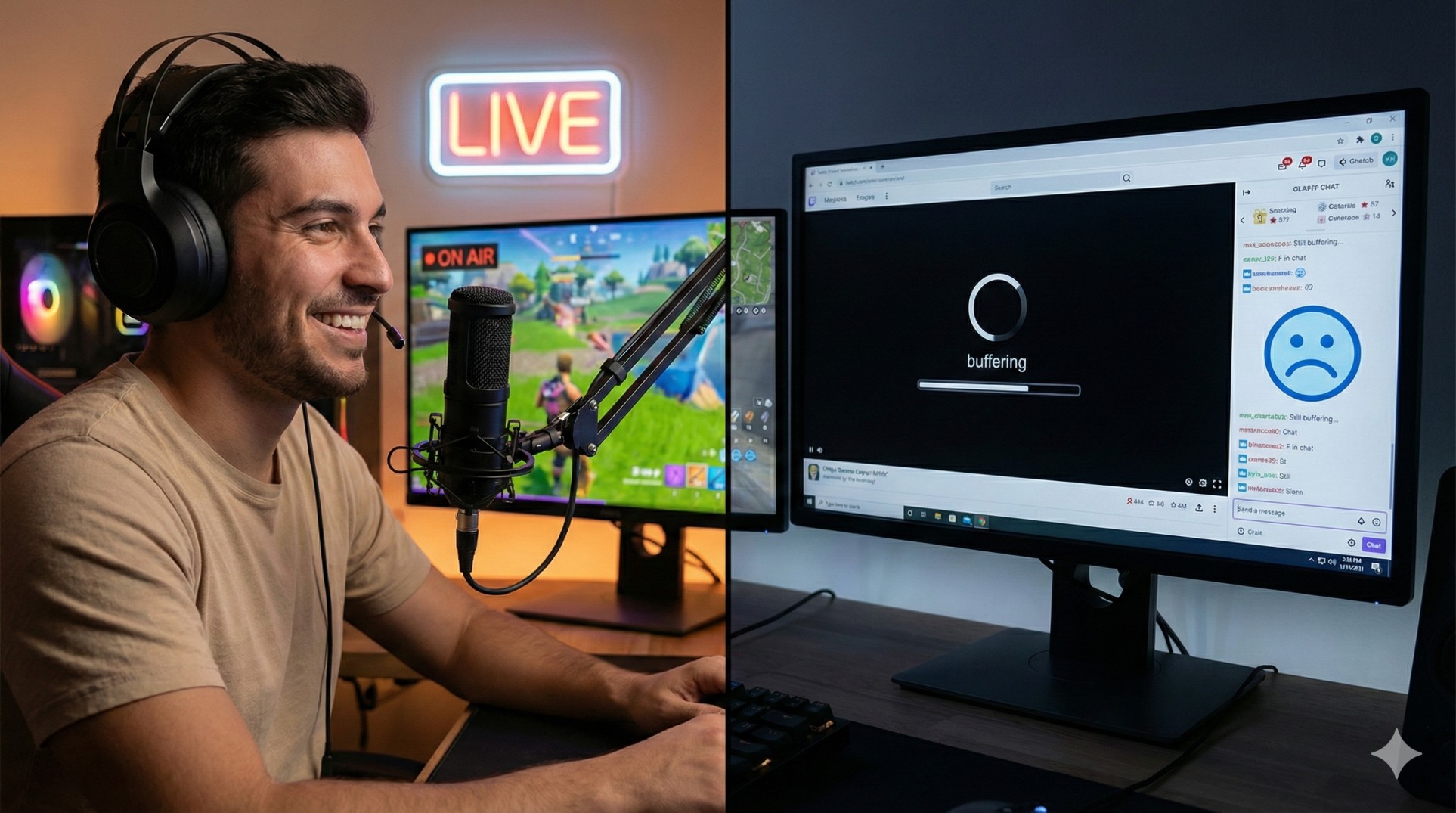
"You have set up OBS. Your webcam is on. You take a deep breath and click 'Start Streaming'.
You feel like the next Ninja or Shroud. Five minutes later, your only viewer (probably your mom) types in chat:
'Beta, the video is stuck.'
The dream crashes. Your internet couldn't handle the pressure. OBS shows red squares. It's heartbreaking."
Don't give up on your streaming dream just because you don't have fiber optic internet. Most people try to stream at settings way too high for their connection. Today, we will teach you how to set up a smooth, watchable stream even on "potato internet."
"A smooth 720p stream is 100 times better than a laggy, buffering 1080p stream. Viewers will leave if it buffers, period."
Step 1: The Reality Check (Test Your Upload Speed)
Forget your download speed; it doesn't matter for streaming. Streaming is all about Upload Speed—how fast you can send video to Twitch.
- Go to speedtest.net and run a test.
- Look at the UPLOAD number.
- If it's below 5 Mbps, you have "low internet" for streaming. Don't worry, we can work with that.
Step 2: Understanding 'Bitrate' (The Magic Number)
Bitrate is the amount of data you send per second. Higher bitrate = better quality = more internet needed.
If your upload speed is 5 Mbps (5000 kbps), you cannot use all of it for streaming. The game needs some, Discord needs some. You should only use about 70% of your upload speed for OBS.
Step 3: The Best OBS Settings for Low Internet
Forget 1080p 60fps. That's for rich people internet. We are aiming for the sweet spot: 720p at 30fps. It looks decent on phones (where most people watch) and requires much less internet.
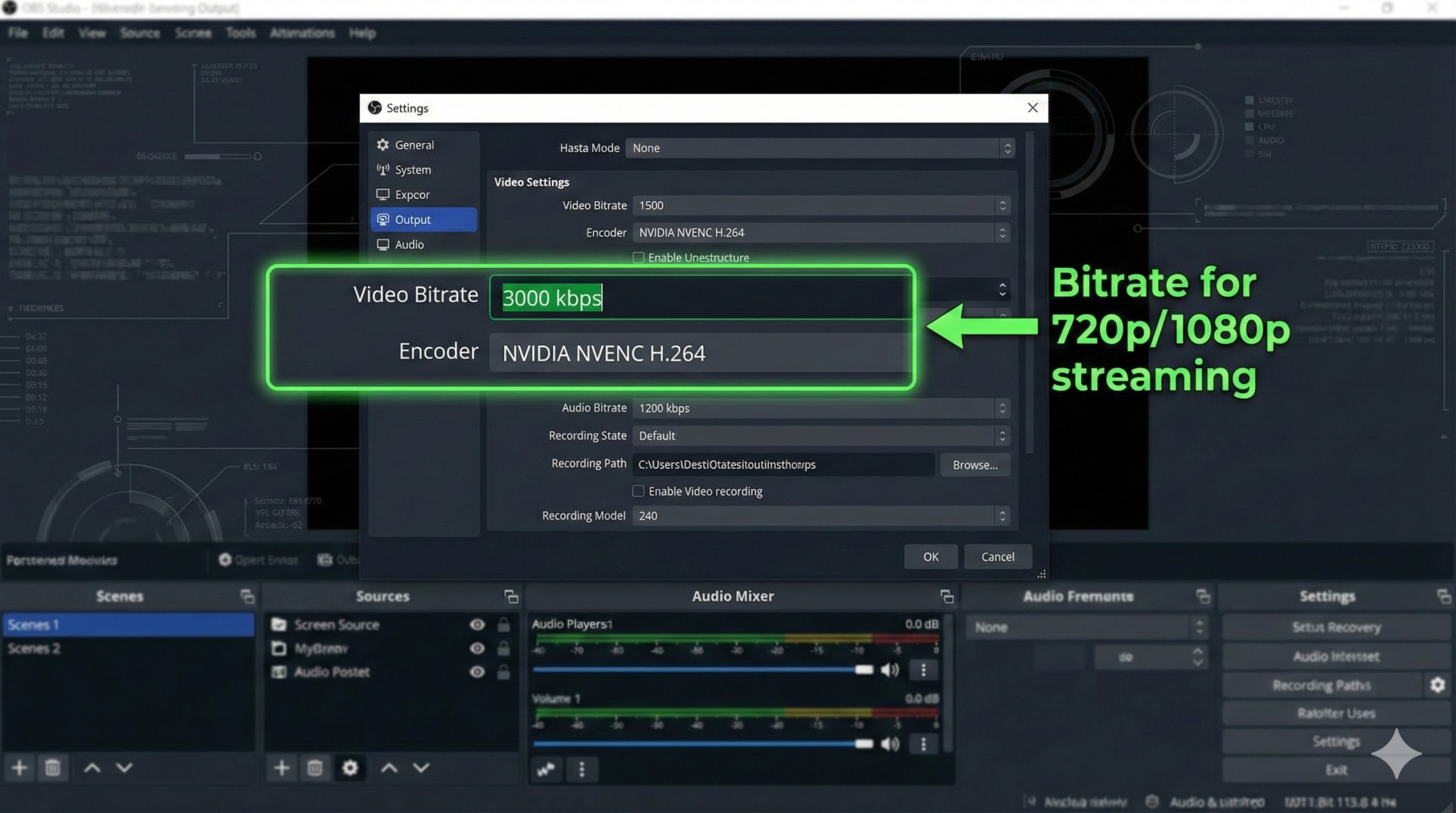
Open OBS Settings > Output:
- Output Mode: Advanced
- Encoder: NVIDIA NVENC H.264 (if you have an NVIDIA GPU) or x264 (Software).
- Rate Control: CBR (Constant Bitrate)
- Bitrate: Set this between 2500 kbps to 3500 kbps. (Start low, increase if stable).
Open OBS Settings > Video:
- Base Resolution: Your monitor resolution (e.g., 1920x1080).
- Output (Scaled) Resolution: 1280x720 (This is crucial!).
- Common FPS Values: 30.
Conclusion: Content > Quality
Remember, people watch streamers for their personality, humor, and gameplay, not because they have 4K resolution. If you are entertaining, people will watch a 720p stream happily. Set it up right, stop the buffering, and start building your community.
Need help calculating your exact bitrate? Send us your speed test results.