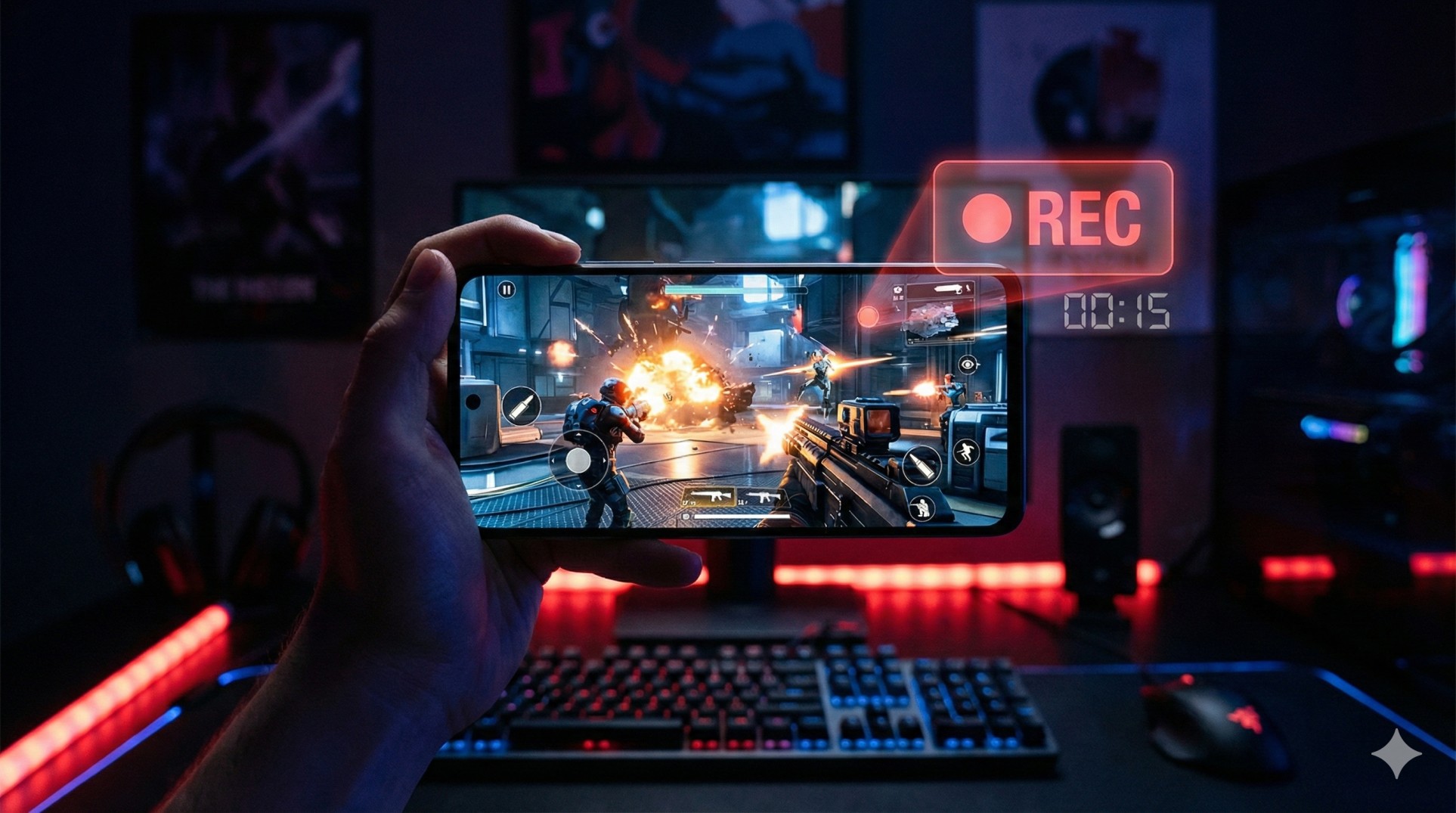
"You just pulled off a 1v4 clutch. It was legendary.
You rush to tell your friends. They say: 'Video bhej, warna jhoot hai' (Send video, or it's a lie).
But you weren't recording because your phone lags when you do.
Pics or it didn't happen. Let's make sure you never miss a moment again."
Recording gameplay is heavy on the processor. If you don't use the right settings, your game will turn into a slideshow. Here is how to record buttery smooth 1080p clips without destroying your FPS.
"Never use 'Auto' settings. Manually setting your Bitrate is the secret to lag-free recording."
1. The Best Option: Your Built-in Recorder
Before you download any app, look at your Quick Settings panel. Phones from Xiaomi, Realme, Samsung, and OnePlus come with excellent native recorders.
Why use it? It is optimized for your specific hardware. It causes the LEAST amount of lag compared to any third-party app.
2. Best Third-Party App: Glip (for Gamers)
If your built-in recorder sucks, download Glip Screen Recorder. It is built specifically for gamers.
- It has a "Replay Mode" (records the last 60 seconds only when you click a button).
- It records **Internal Audio** clearly (no fan noise or mom shouting in the background).
- It's free and has no watermark.
3. The Secret Settings (Zero Lag Config)
Most people just hit record and complain about lag. You need to tweak these settings:
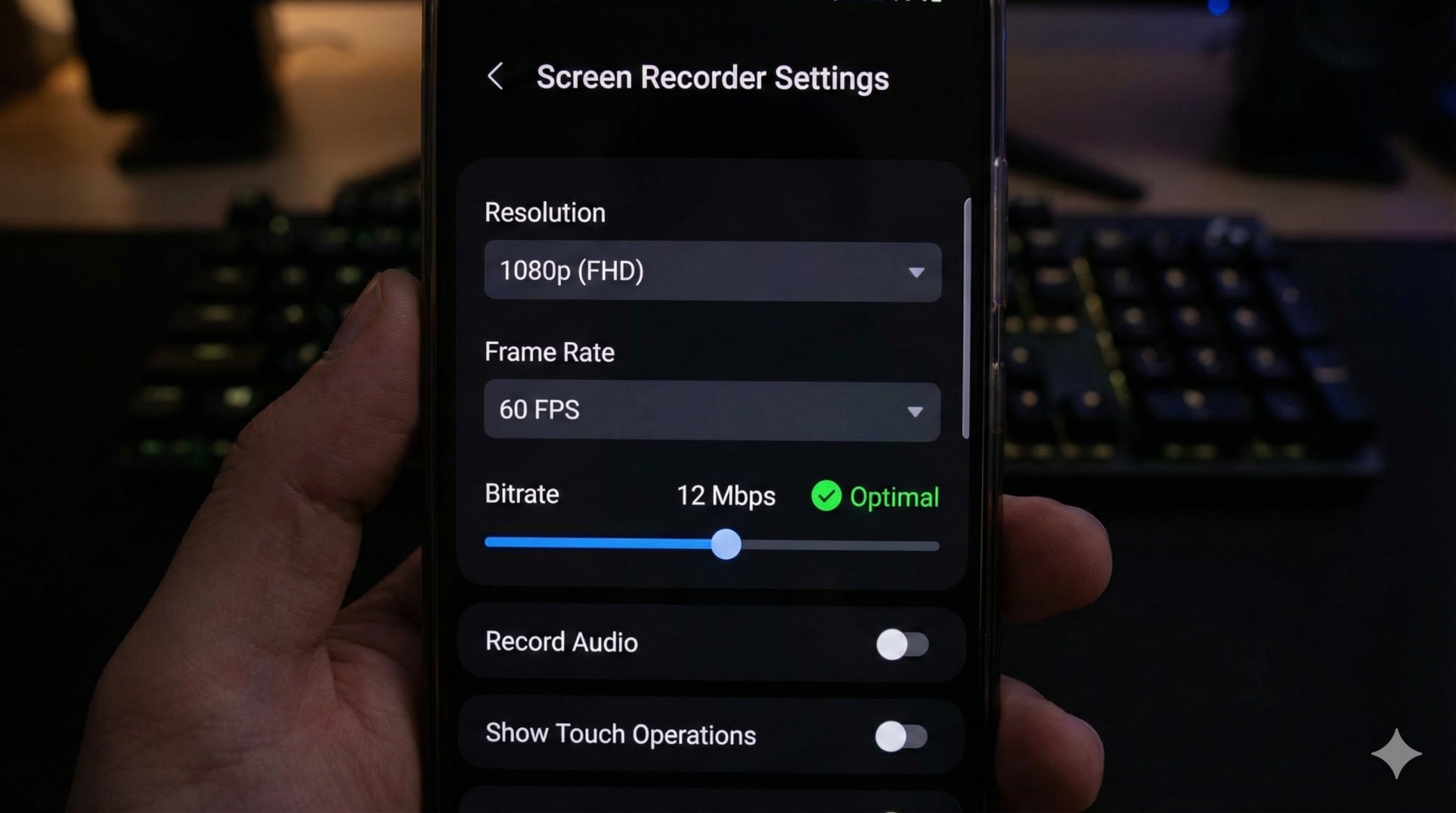
- Resolution: Set to **1080p** (or 720p if you have a budget phone).
- Frame Rate: Always set to **60 FPS**. 30 FPS videos look terrible for gaming.
- Bitrate (The Most Important): Do NOT set this to Auto or 50Mbps.
- For 1080p: Set to **12 Mbps**.
- For 720p: Set to **8 Mbps**.
Setting bitrate too high (like 20Mbps) creates huge files and makes the phone lag. 12Mbps is the sweet spot.
4. Audio Source: Internal vs Mic
Make sure your "Audio Source" is set to **Internal Audio**. This records the game sounds directly from the system.
If you want to record your voice too, select **"Internal Audio + Microphone"**, but make sure you use headphones so the game sound doesn't echo.
Conclusion: Proof of Skill
Recording shouldn't be a burden. Use your built-in recorder or Glip, lock the bitrate to 12Mbps, and you'll get crisp, smooth gameplay clips ready for YouTube or Instagram Reels.
Want to edit those clips like a pro? Ask us for editing app recommendations.