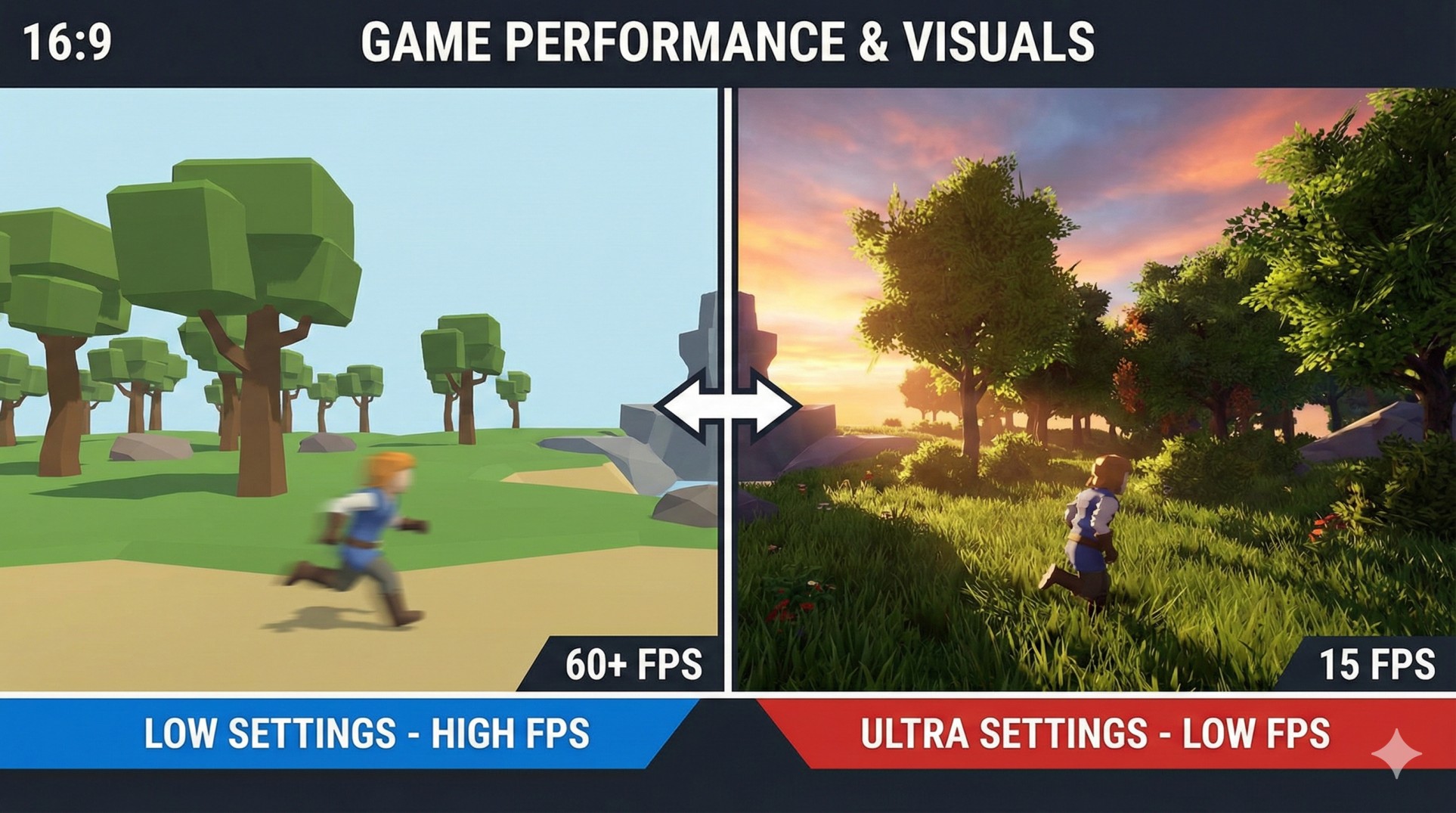
"You bought a new game. You are excited. You launch it, go to settings, and click that tempting 'ULTRA' preset.
The game loads, and it looks breathtaking... for about 3 seconds. Then it turns into a slideshow.
The eternal struggle: Do you want a game that looks like real life but runs at 20 FPS, or a game that looks like Minecraft but runs at 144 FPS?"
Finding the perfect balance is an art. Most gamers blindly lower everything to 'Low', making their expensive PC useless. Today, we will learn which settings actually murder your FPS and which ones are safe to keep high.
"Visibility beats Beauty. If a beautiful shadow hides an enemy, turn it off."
1. Resolution (The Big Boss)
This is the single most important setting. Running a game at 4K (2160p) requires 4 times more power than 1080p.
- Recommendation: Always use your monitor's native resolution (usually 1080p or 1440p).
- FPS Tip: If you are desperate, lower the "Render Scale" to 90% instead of changing the main resolution. The UI remains sharp, but the game renders internally at a lower res.
2. Shadows (The Silent FPS Killer)
Calculating realistic shadows for every object, character, and tree leaf is incredibly demanding on your GPU.
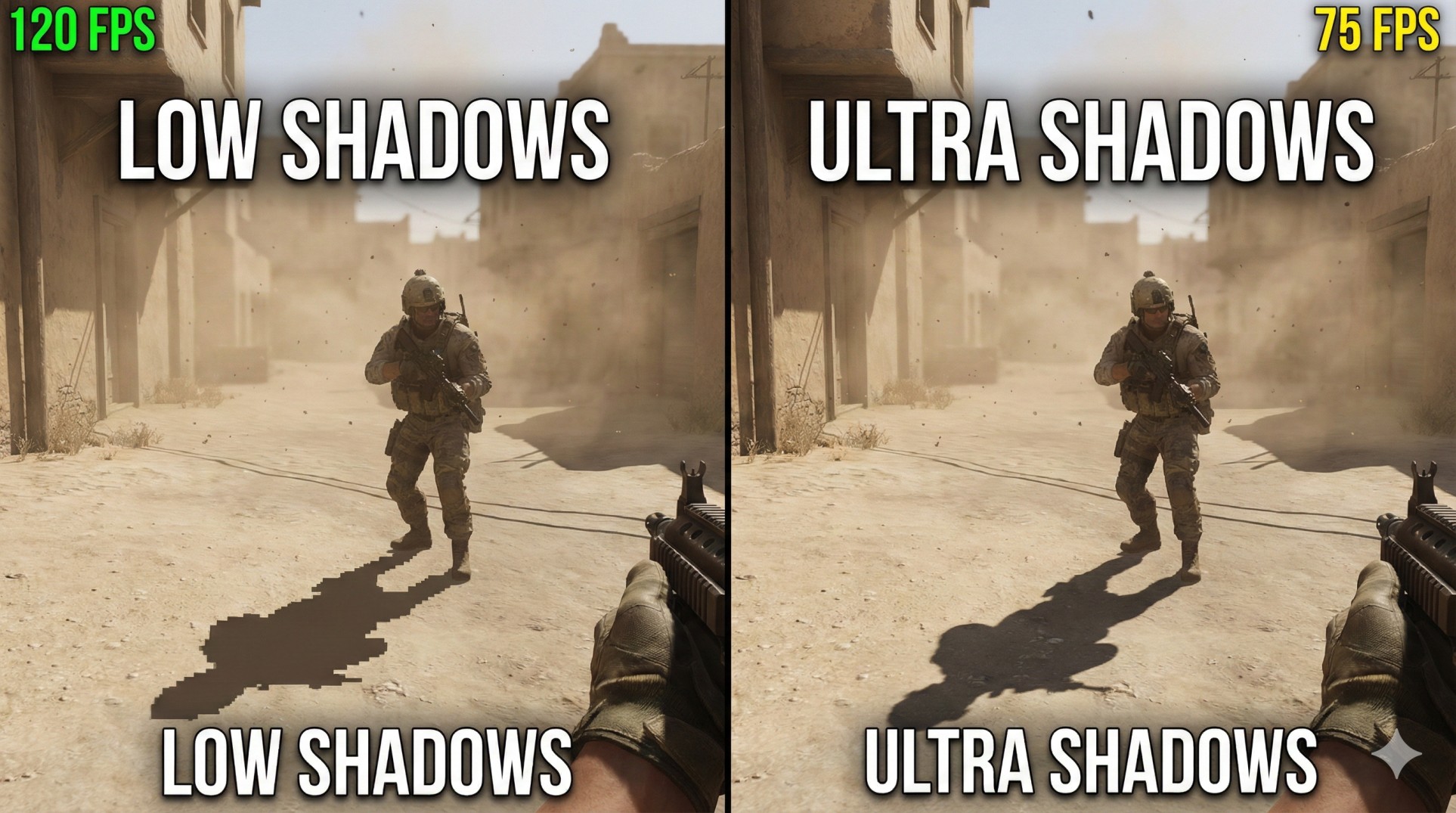
- Ultra Shadows: Looks amazing, realistic soft edges. FPS Cost: Very High (20-30%).
- Low Shadows: Looks a bit blocky or disappears quickly. FPS Cost: Low.
- Verdict: Set to Medium or Low for competitive games. You won't notice nice shadows when you are getting shot at.
3. Anti-Aliasing (The Blur Maker)
Anti-Aliasing (AA) smooths out jagged edges on objects. Without it, power lines look like staircases.
- MSAA/SSAA: The best quality, but heavy on performance. Avoid on mid-range PCs.
- FXAA/TAA: Very fast, almost no FPS loss, but makes the game look slightly blurry.
- Verdict: Use TAA (Low) or FXAA for a good balance.
4. Textures (Surprisingly Safe!)
Textures are the "skin" on 3D models. Surprisingly, Texture Quality does NOT affect FPS much, as long as you have enough VRAM (Video RAM) on your graphics card.
- Verdict: Set to High or Ultra. If your game starts stuttering, lower it to Medium (it means you ran out of VRAM).
Conclusion: Tweak It!
Don't rely on presets. Spend 10 minutes tweaking these individual settings. Turn down shadows and anti-aliasing, but keep textures high. You will get a game that looks great AND runs smoothly.
Want to boost FPS further? Check out our Ultimate FPS Boost Guide.