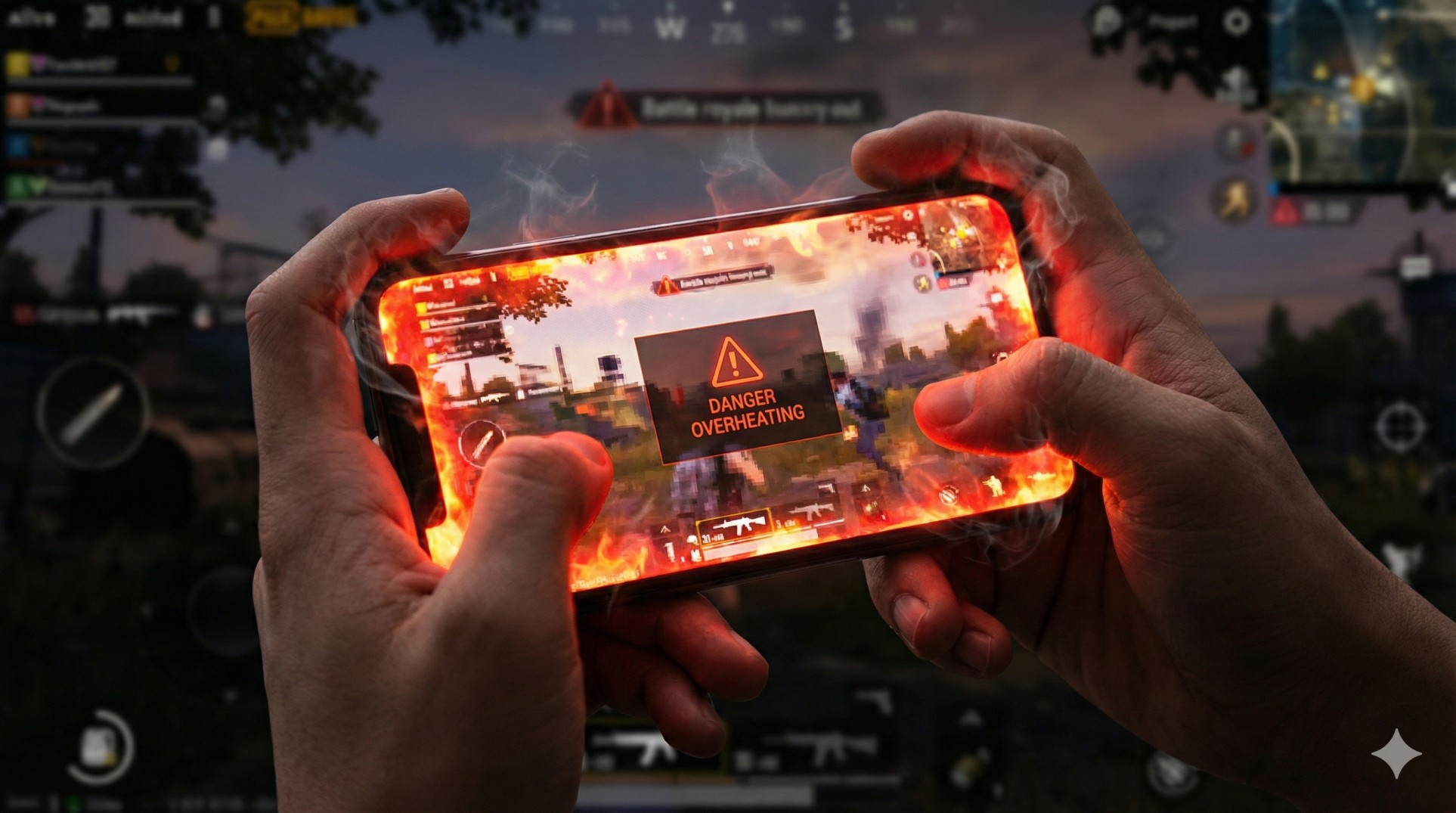
"You are in the final circle of BGMI. Only one enemy left. Your heart is racing.
Suddenly, your screen dims automatically. The game starts stuttering. Your phone feels like a hot cup of tea.
The enemy jumps, shoots, and you die because your frame rate dropped to 10 FPS.
Overheating didn't just burn your hands; it burned your Chicken Dinner."
Mobile processors are powerful, but they are packed into a tiny box with no fans. When they get hot, they slow down (throttle) to protect themselves. Let's fix this so you can play smoothly even in summer.
"Never play while charging. Charging creates heat + Gaming creates heat = BOOM (or at least, a dead battery)."
Step 1: Strip It Down (Remove the Case)
We love our expensive phone cases, but they act like a winter jacket for your phone. They trap heat inside.
The Fix: Before you launch a heavy game like Genshin Impact or COD, take the back cover off. This simple trick allows heat to escape from the back panel directly into the air. It can lower temps by 3-5°C instantly.
Step 2: Graphics vs FPS (The Trade-off)
Playing on 'HDR' or 'Ultra HD' graphics forces your GPU to work 100% harder, generating massive heat.
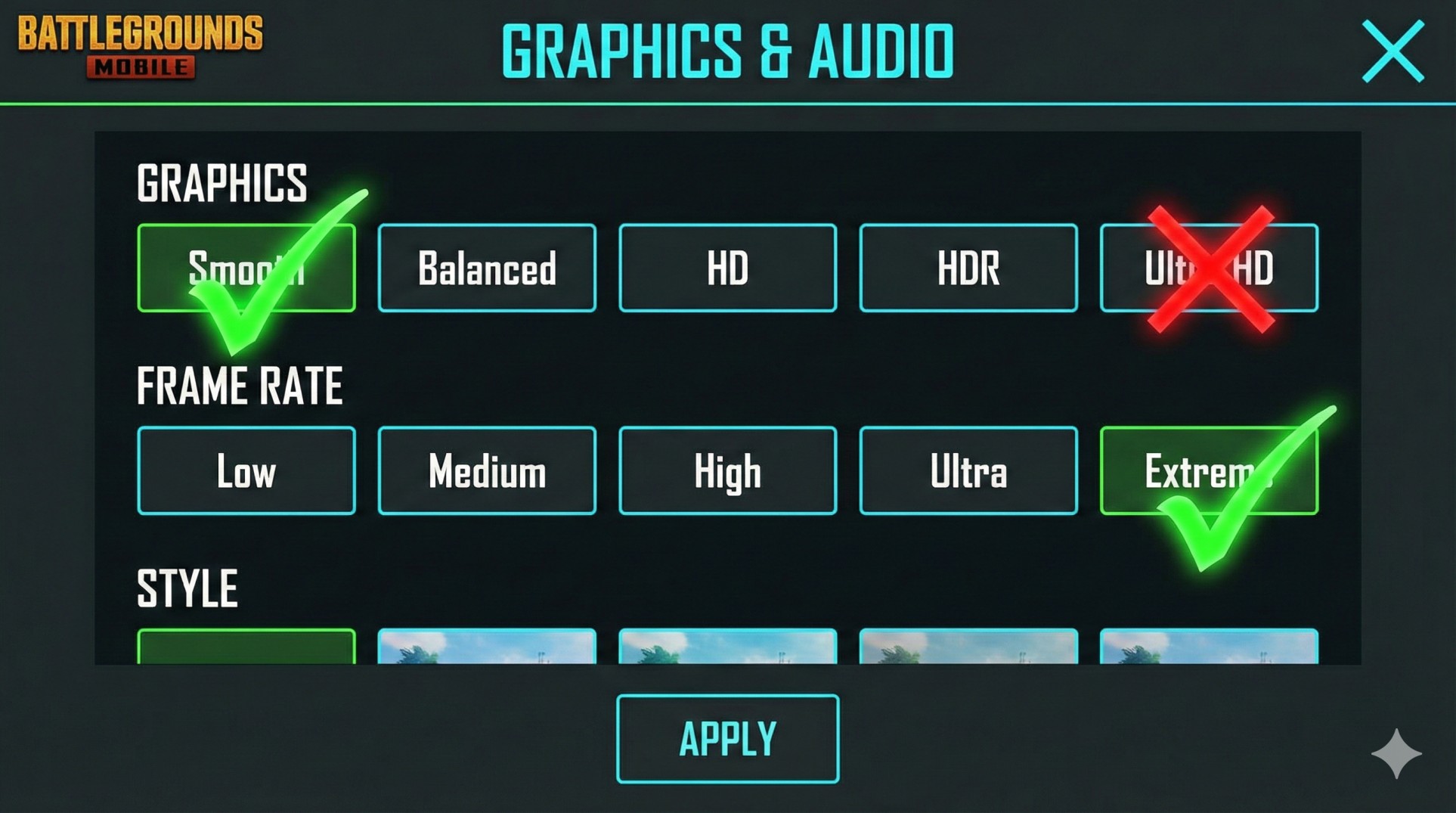
Recommended Settings for Cool Gaming:
- Graphics: Smooth / Low (Always choose the lowest visual option).
- Frame Rate: Extreme / 60 FPS / 90 FPS (Always choose the highest speed option).
- Style: Soft or Classic (Avoid 'Movie' or 'Realistic' filters).
Step 3: The Wet Tissue Hack (Desi Jugaad)
This sounds weird, but pro mobile gamers do it. If you don't have a cooling fan, take a slightly damp (not dripping wet!) tissue paper or cotton cloth.
Place it on the back of your phone (avoiding the camera) between matches. The water evaporates and pulls heat away from the metal body rapidly. Warning: Be careful not to get water in the charging port!
Step 4: Stop Background Data Vampires
If Instagram is syncing reels and WhatsApp is backing up chats while you game, your processor is doing double duty.
Enable **"Focus Mode"** or **"Gaming Mode"** on your phone. This blocks notifications and kills background apps, dedicating all power (and thermal limits) to your game.
Conclusion: Keep it Cool
Heat is the enemy of performance. By removing the case, lowering graphics, and avoiding charging while playing, you can keep your FPS high and your temper low.
Want to unlock 90 FPS on your device? Check our FPS Guide here.