"You have the latest iPhone with the A17 Bionic chip. It's a beast.
But in the middle of a fight, you accidentally swipe up, and the game closes.
Or worse, your phone gets slightly warm, and iOS decides to dim your screen to 50% brightness automatically. Now you can't see the enemy in the dark corner.
Welcome to the Apple ecosystem. Great hardware, annoying software."
Don't worry, you don't need to switch to Android. iOS has hidden settings that can turn your iPhone into a dedicated gaming console. You just need to know where to look.
"This is the single most important setting for iPhone gamers. It locks your phone into a single app, disables the home bar swipe, and blocks all notifications."
1. Enable 'Guided Access' (No More Accidental Swipes)
Tired of accidentally swiping out of the game? Or pulling down the Notification Center while shooting?
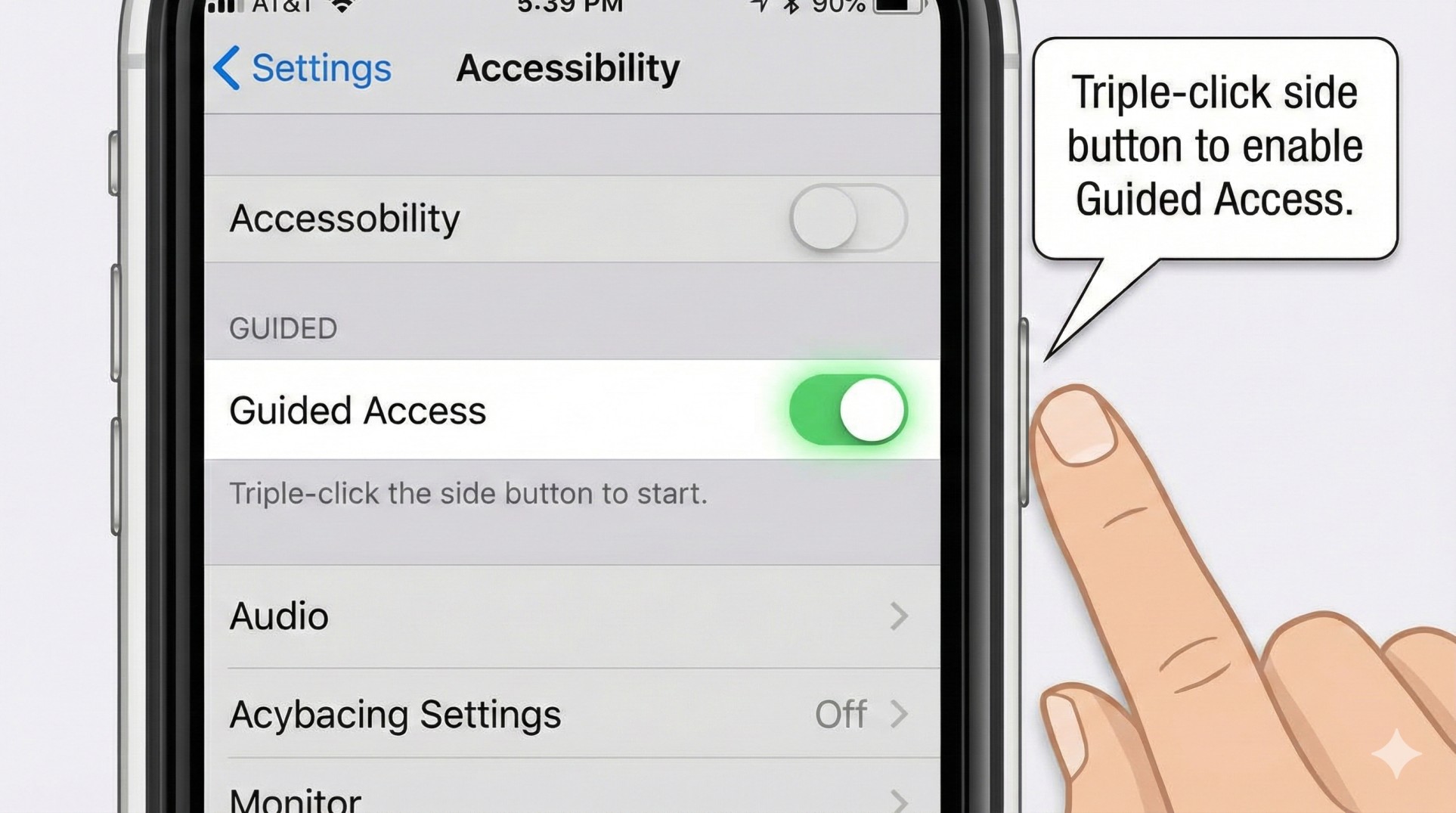
- Go to **Settings > Accessibility > Guided Access**.
- Turn it **ON**. Set a passcode (or use FaceID).
- How to use: Open your game, then **Triple-Click the Power Button**.
- Boom! The touch bar at the bottom is disabled. Notifications are blocked. You cannot exit the game until you triple-click again.
2. Fix the Auto-Dimming Issue
iPhones are notorious for dimming the screen when they get warm. To minimize this:
- Go to **Settings > Accessibility > Display & Text Size**. Scroll down and turn **OFF "Auto-Brightness"**.
- Go to **Settings > Display & Brightness**. Turn **OFF "True Tone"** (it changes colors and adds processing load).
- Keep your phone cool (remove the case). If it gets too hot, iOS will dim the screen no matter what settings you change.
3. Turn Off 'Background App Refresh'
You don't want Facebook refreshing your feed while you are playing COD Mobile. It uses CPU and warms up the phone.
Go to **Settings > General > Background App Refresh**. Turn it **OFF** completely. This saves a ton of battery and keeps the CPU cool for gaming.
4. Reduce Motion (For Snappier Feel)
iOS loves fancy animations, but gamers love speed. Turning off animations makes the phone feel more responsive.
Go to **Settings > Accessibility > Motion**. Turn **ON "Reduce Motion"**. Your phone will feel instantly snappier when switching menus.
Conclusion: Unleash the Beast
The iPhone is an incredible gaming machine if you tame the software. Use Guided Access every time you play seriously, and say goodbye to accidental swipes and annoying notifications.
Want to play PC games on your iPhone? Check our Cloud Gaming Guide.