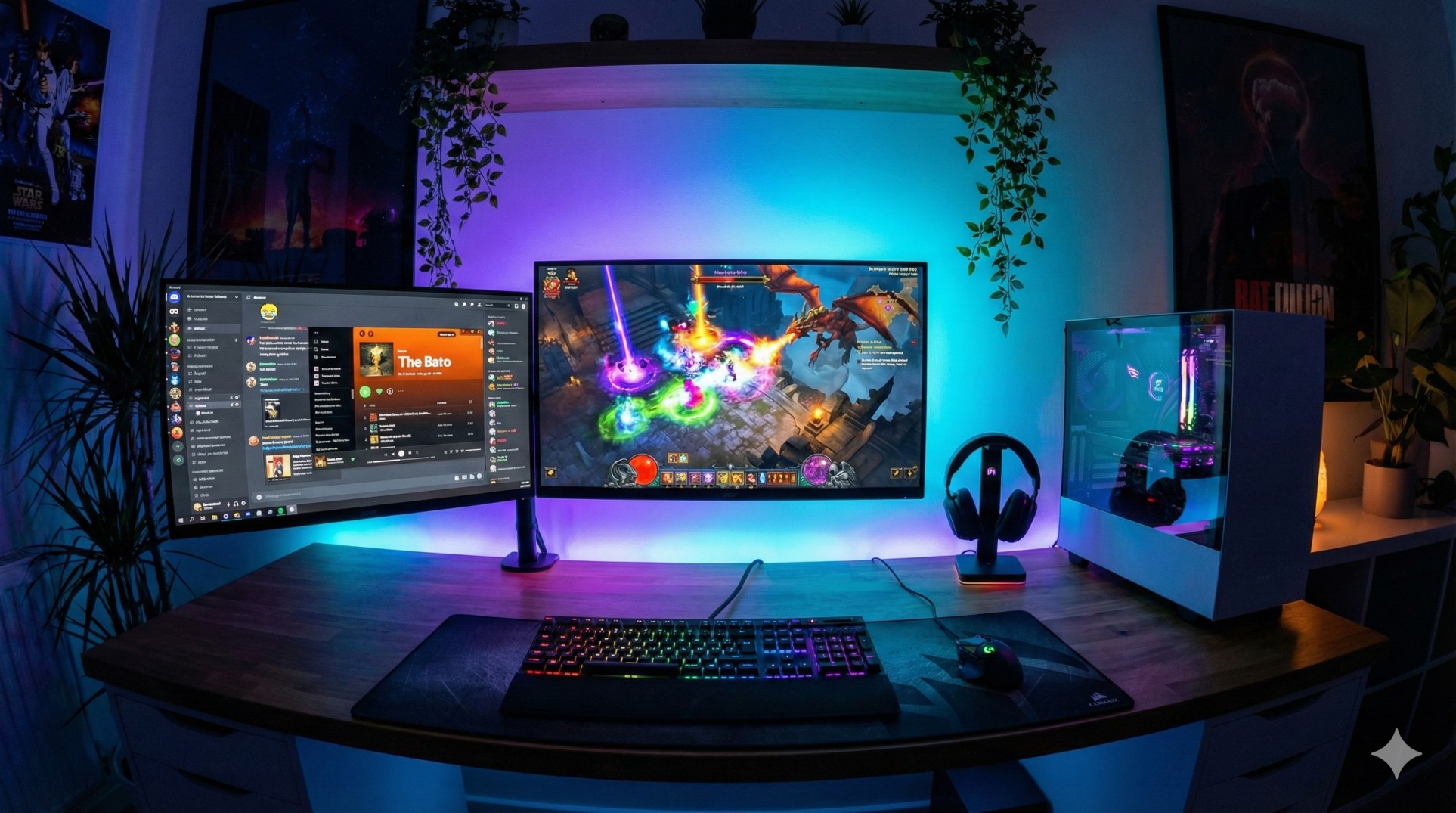
"You are playing GTA V. You need to check a cheat code.
You press Alt + Tab. The screen goes black for 3 seconds. The game minimizes. You Google the code.
You Alt + Tab back. The game glitches and crashes.
The Alt-Tab struggle is real. But there is a solution that makes you look like a NASA hacker."
Adding a second monitor isn't just for streamers. It's the biggest quality-of-life upgrade you can give yourself. Game on one screen, Discord/Spotify/YouTube on the other. No more minimizing.
"Your second monitor doesn't need to be expensive. Find an old 60Hz office monitor for cheap. It's perfect for Discord and maps. Only your main gaming screen needs to be 144Hz+."
Step 1: Connecting the Beast
Most graphics cards (GPUs) have multiple ports (HDMI and DisplayPort). simply plug your second monitor into the GPU (not the motherboard!).
Once plugged in, Windows might duplicate your screen. We want to Extend it.
- Press **Windows Key + P**.
- Select **Extend**.
- Now your mouse can travel from one screen to the other seamlessly.
Step 2: Aligning the Screens
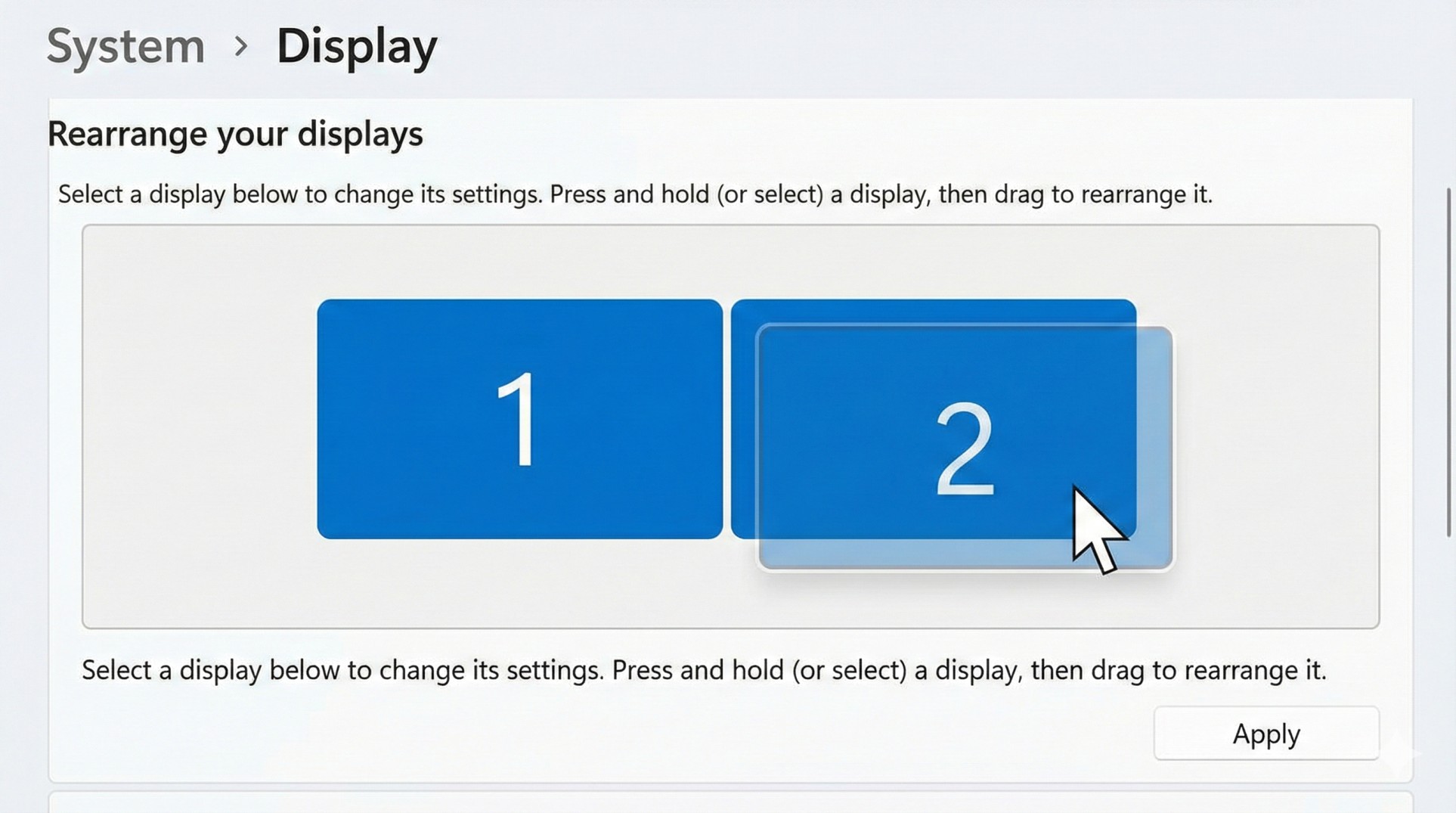
If your mouse gets stuck at the edge, your PC doesn't know where your second screen is sitting physically.
- Right-click desktop > **Display Settings**.
- You will see rectangles labeled '1' and '2'.
- Drag the rectangles to match your real-life desk setup (e.g., if monitor 2 is on the left, drag it to the left).
- Click **Apply**. Now the mouse flows like water.
Step 3: The Hertz Check
A common mistake: Connecting a 144Hz monitor and forgetting to enable 144Hz in Windows.
Go to **Advanced Display Settings** and ensure your main gaming monitor is set to the highest Refresh Rate possible. Your second monitor can stay at 60Hz.
Conclusion: Never Go Back
Once you experience the freedom of having a YouTube video open while grinding XP in a game, you will wonder how you ever survived with a single screen. It boosts productivity by 50% and fun by 100%.
Confused about 144Hz vs 60Hz? Read our Refresh Rate Guide.