"A new game launches. It runs terribly on your PC.
You think, 'I just need to update my drivers!'
You click update. The screen flickers. Now your game won't even open.
Corrupted drivers are the silent killer of gaming PCs. Let's learn how to install them cleanly."
Graphics drivers (NVIDIA/AMD) tell your Windows how to talk to your GPU. Old drivers cause low FPS. Corrupted drivers cause crashes. Updating them is mandatory, but there is a right way and a wrong way.
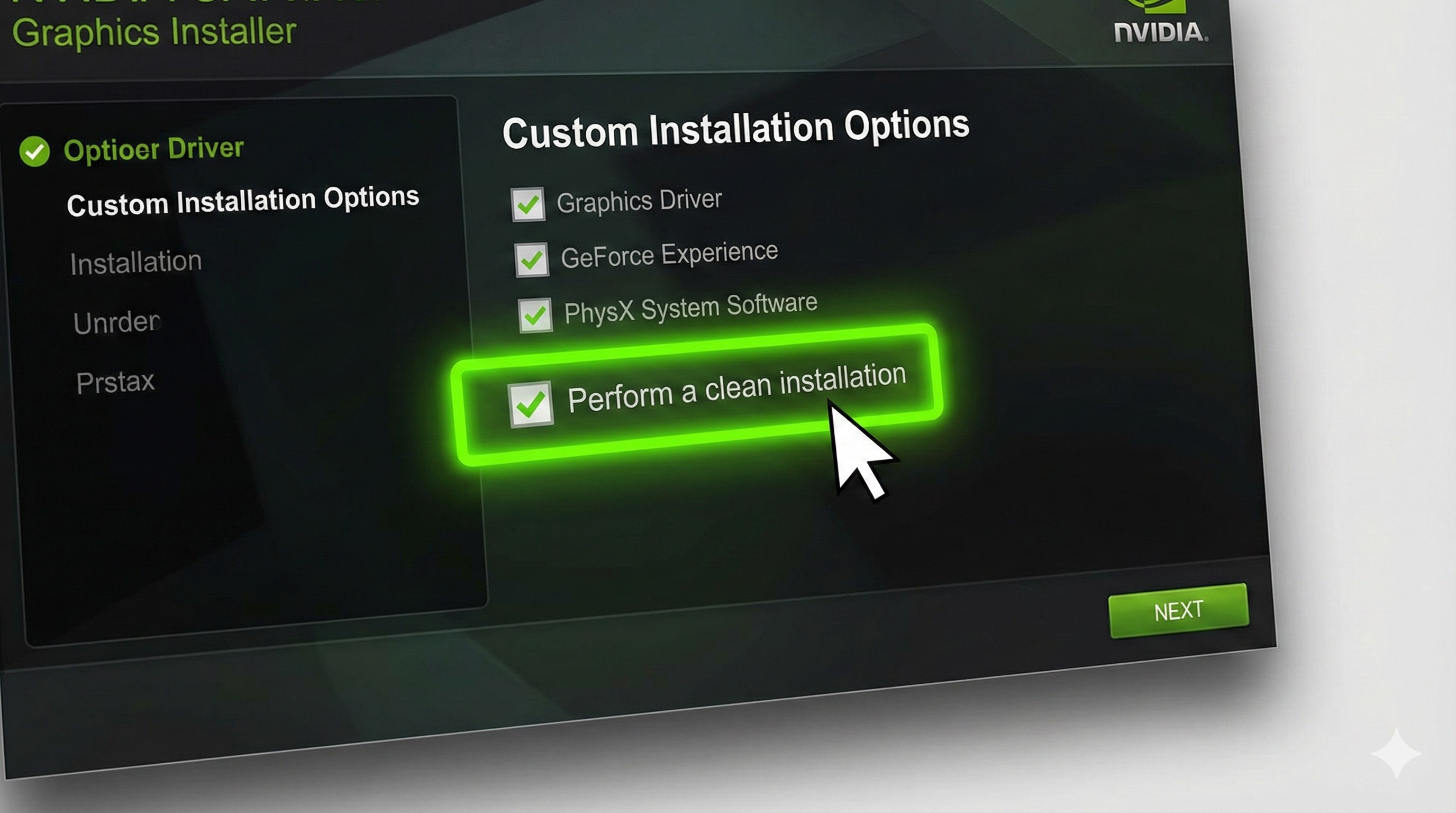
"Always choose 'Custom Install' over 'Express Install'. This gives you the magical option to perform a 'Clean Installation'."
Method 1: The 'Clean Install' Checkbox (Recommended)
Most people just spam the "Next" button. Stop doing that.
- Open GeForce Experience (NVIDIA) or Adrenalin (AMD).
- Download the latest driver.
- Click "Custom Installation".
- Check the box that says "Perform a clean installation" (or "Factory Reset" for AMD).
This wipes your old settings and installs a fresh copy. It fixes 90% of game stuttering issues.
Method 2: The Nuclear Option (DDU)
If your games are constantly crashing or you just switched from AMD to NVIDIA, you need DDU (Display Driver Uninstaller).
- Download DDU (it's free).
- Disconnect your internet (so Windows doesn't auto-install random drivers).
- Run DDU and select "Clean and Restart".
- Your PC will restart with basic graphics. Now install the new driver fresh.
Conclusion: Don't Ignore Updates
New drivers often contain specific optimizations for new games (like GTA 6 or COD). Updating them correctly ensures you get those free FPS boosts without the headache of crashes.
Windows slowing down? Optimize Windows 11 for Gaming next.