
"You built a fast PC. You installed Windows 11. You launched Valorant.
Why does it feel sluggish? Why is your mouse floating?
Because Windows 11 is optimized for battery life and office work by default, not for headshots.
Let's wake up your operating system."
We are going to disable the bloatware and enable the hidden performance features. These tweaks take 5 minutes but can make your PC feel significantly snappier.
"In the past, 'Game Mode' was bad. In 2026, it is ESSENTIAL. It tells Windows to pause updates and background tasks while you play. Always turn it ON."
1. Turn ON 'Game Mode'
This is step one. It prioritizes your game over everything else.
- Press **Windows Key + I** to open Settings.
- Go to **Gaming > Game Mode**.
- Toggle the switch to **ON**.
2. Turn OFF 'Enhance Pointer Precision'
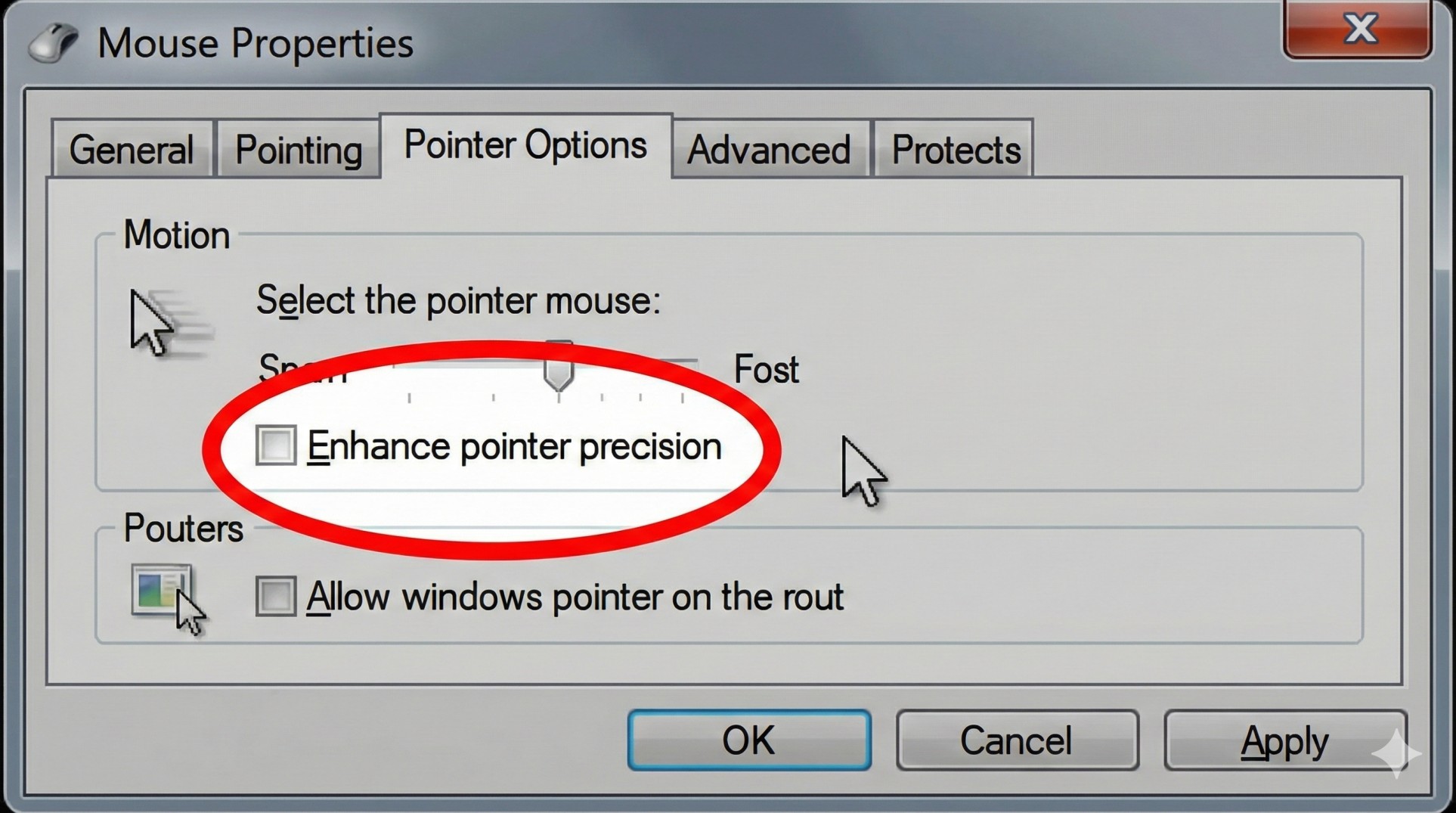
This is the enemy of muscle memory. It changes your mouse speed depending on how fast you move your hand. You want consistent speed.
- Search for **"Mouse Settings"** > **Additional mouse settings**.
- Go to the **Pointer Options** tab.
- Uncheck the box "Enhance pointer precision".
- Now your aim is 100% raw input. It will feel weird for 1 hour, then you will aim like a god.
3. Enable 'Hardware-Accelerated GPU Scheduling'
This forces your GPU to manage its own memory instead of asking the CPU. It reduces latency.
- Go to **System > Display > Graphics > Change default graphics settings**.
- Turn **ON** "Hardware-accelerated GPU scheduling".
- Restart your PC.
4. High Performance Power Plan
Don't let your PC save energy while you are gaming.
- Search for **"Edit Power Plan"**.
- Click **Power Options** in the address bar.
- Select **High Performance** (or Ultimate Performance if available).
Conclusion: Free Performance
You don't always need new hardware to get better FPS. Sometimes, you just need to tell Windows to get out of the way. Apply these settings, restart, and enjoy a smoother experience.
Want to check if your RAM is set up correctly? Read our RAM Guide.